Table of Contents Example
Table of Contents
Adding a Table of Contents Block
Method 1 – Use a forward slash (/) and then type out “toc”. The stat block should show up.
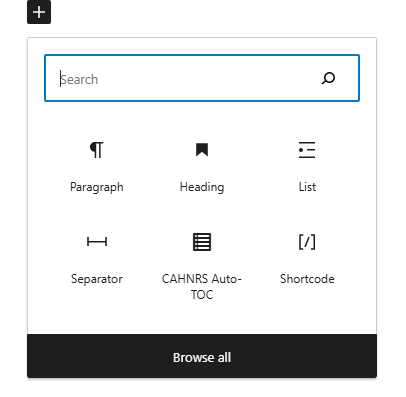
Method 2 – After selecting the editor, the user should see a + icon. Selecting this should show a list of the most common blocks used. If the Table of Contents block is not there, use the search feature to find it.
Learn About Other Blocks
Table of Content Block Features
Side Panels
After selecting the table of contents block, the user will see the following options on the right hand panels:
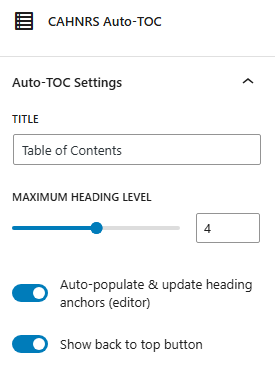
- Title – Change the title from “Table of Contents” to something related to the page.
- Maximum Heading Level – This controls how many heading levels show up on the table of contents. If 2 is selected, only the heading 2 will be shown. If 3 is selected, heading 2 and 3 will be shown. This is good if you have a page with a lot of different headings and you want to keep your table of contents smaller.
- Auto-populate & update heading anchors – This allows the plugin to automatically update the table of contents with new content. It is on by default.
- Show back to top button – This adds a “Back to Top” button at the bottom of the page. This is good for pages that have a lot of content.