Dropdown Menu Example
Adding a Dropdown Menu Block
Method 1 – Use a forward slash (/) and then type out “dropdown”. The dropdown menu block should show up.
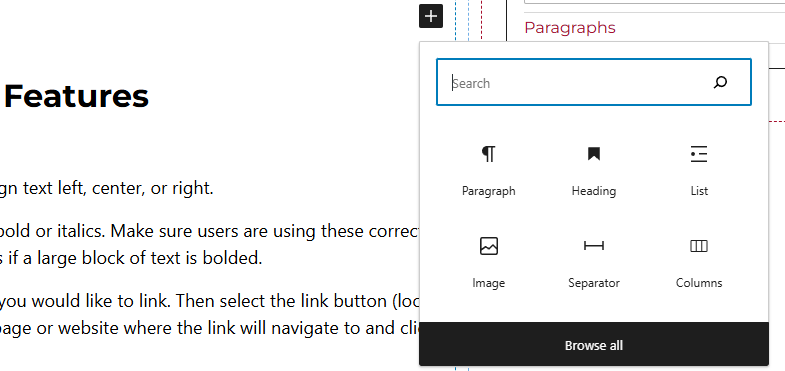
Method 2 – After selecting the editor, the user should see a + icon. Selecting this should show a list of the most common blocks used. If the dropdown menu block is not there, use the search feature to find it.
Dropdown Menu Block Features
Side Panels
After selecting the dropdown menu block, the user will see the following options on the right hand panels:
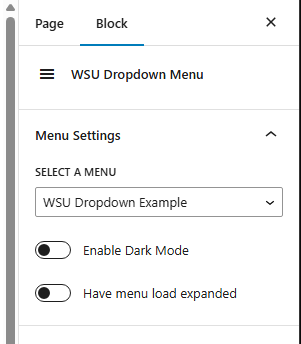
- Select a Menu – Users can select the menu they would like to show up. A menu will first need to be created in the “Menu” page of WordPress.
- Enable Dark Mode – Users select to have the menu have a dark background.
- Have menu load expanded – Loads the menu with all links showing no matter if they are submenu items.