Gallery Example









Adding a Gallery Block
Method 1 – Use a forward slash (/) and then type out “gallery”. The gallery block should show up.
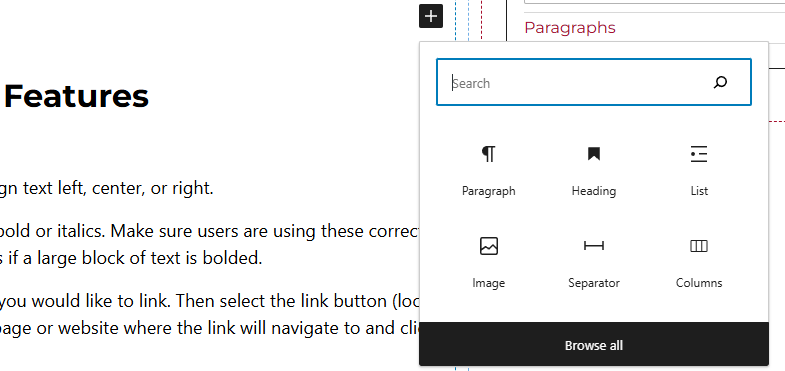
Method 2 – After selecting the editor, the user should see a + icon. Selecting this should show a list of the most common blocks used. If the gallery block is not there, use the search feature to find it.
Gallery Block Features
When the gallery block is selected, users will have the option of uploading images or selecting the images from the media library.
Side Panels
After selecting the gallery block, the user will see the following options on the right hand panels:
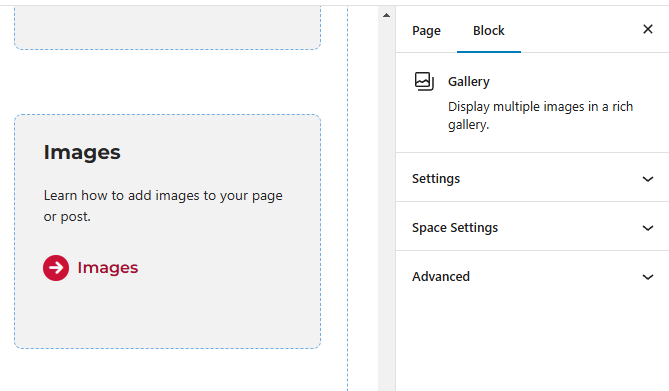
- Settings – Select the total images per column. Toggle off or on cropping of images. Link the images to the media file or the attachment page. Change the size of the image.
- Space Settings – Users can add margin to the block. This is usually done to add more spacing around block so they are not too close to other elements.
- Advanced – Allows users to schedule the block, position the block, create an anchor link to the block, and hide the block on a specific breakpoint.
- Block Scheduling (if enabled) – Allows block to be scheduled. This causes the block to be published or unpublished depending on the date selected.