News List and Card Examples
News List Example
- WSU Energy Program launches Residential Energy Code Calculator The WSU Energy Program has released a new tool that streamlines energy code documentation for residential construction across Washington.
- New WSU-led research aims to transform U.S. fish farming A new, WSU-led approach to fish breeding could help aquaculture grow safely and profitably, with support from the Foundation for Food & Agriculture Research and Troutlodge.
- New from Extension: Conservation grazing, Varroa resistance, Cosmic Crisp® best management practices, and more Each month, experts from Washington State University Extension release guides that inform agriculture in Washington and beyond. The latest Extension publications explore conservation grazing principles for livestock producers, help the tree fruit industry effectively grow the Cosmic Crisp® apple variety, protect against foodborne illness, and aid beekeepers facing resistant pests. Find more guides and topics […]
News Cards Example
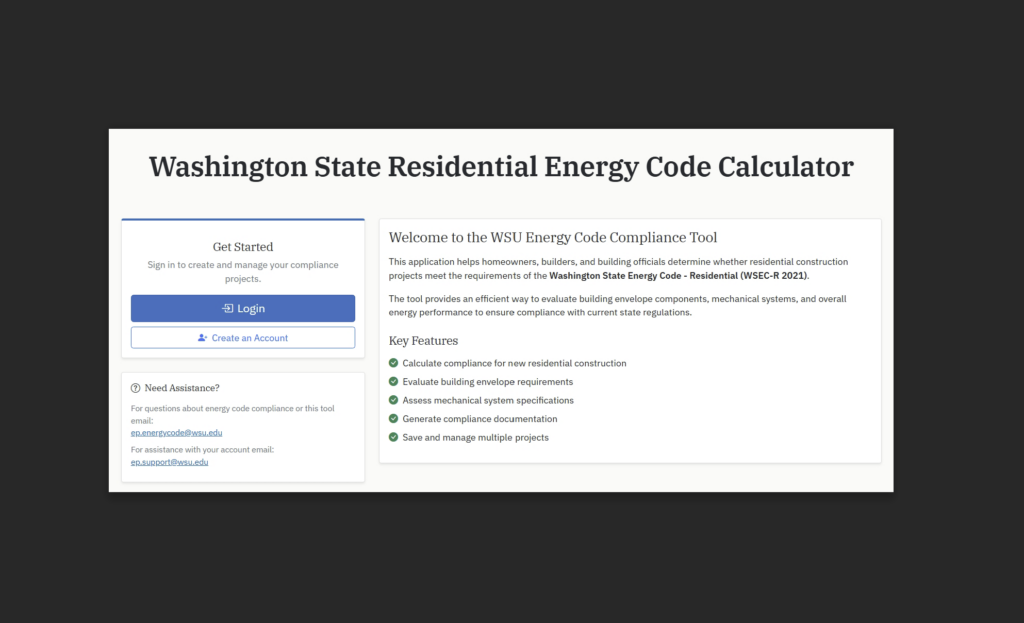


Adding a News List or Card Block
Method 1 – Use a forward slash (/) and then type out “news list” or “news cards”. The news list block should show up.
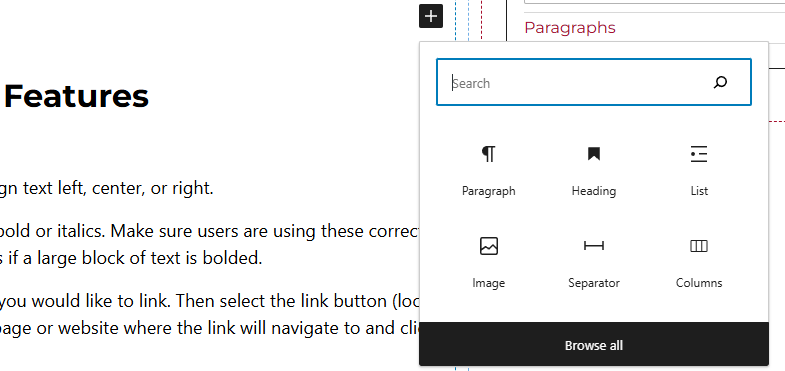
Method 2 – After selecting the editor, the user should see a + icon. Selecting this should show a list of the most common blocks used. If the news list or card block is not there, use the search feature to find it.
News List or Card Block Features
Side Panels
After selecting the news list block, the user will see the following options on the right hand panels:
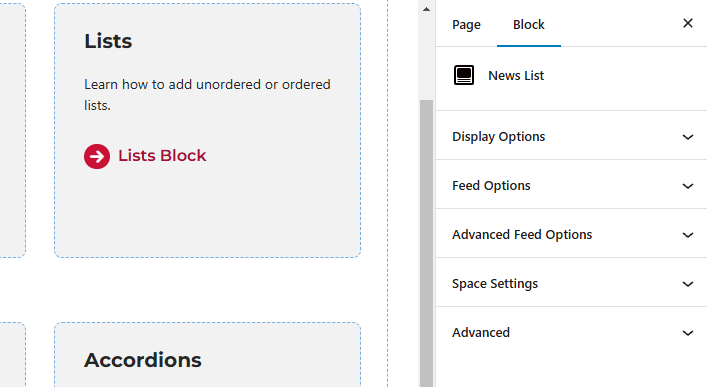
- Display Options – Users can choose to hide the caption and/or the publish date.
- Feed Options – Under this panel, users can select to only pull in news from a specific post type and taxonomy:
- Post Type – By default this will look at posts. There will be times when websites have other post types like News Articles.
- Taxonomy – This looks to grab either the category, tag, or other custom taxonomy.
- Terms – Type in the taxonomy term.
- Count – This options pulls in the number typed in.
- Advanced Feed Options – Under this panel, users can select some of these options:
- Use AND logic for terms – Toggle this on if the news list block should limit the results to only those that have ALL the terms.
- Offset – Skips the given number of items before starting results.
- Host (optional) – URL for the website to get results from.
- Space Settings – Users can add margin to the news list blocks. This is usually done to add more spacing around block so they are not too close to other elements.
- Advanced – Allows users to schedule the block, position the block, and hide the block on a specific breakpoint.
- Block Scheduling (if enabled) – Allows block to be scheduled. This causes the block to be published or unpublished depending on the date selected.