Aside/Callout Examples
This is a heading
This is a content area where blocks can be added.
This is a heading
This note block has dark mode enabled
Adding a Aside/Callout Block
Method 1 – Use a forward slash (/) and then type out “aside/callout”. The aside/callout block should show up.
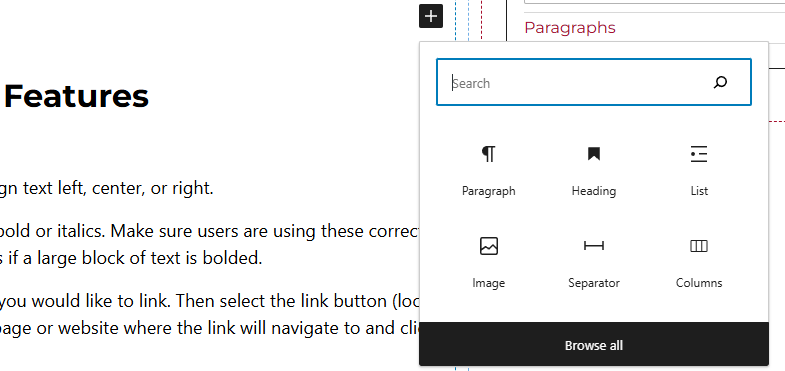
Method 2 – After selecting the editor, the user should see a + icon. Selecting this should show a list of the most common blocks used. If the aside/callout block is not there, use the search feature to find it.
Aside/Callout Block Features
Side Panels
After selecting the aside/callout block, the user will see the following options on the right hand panels:
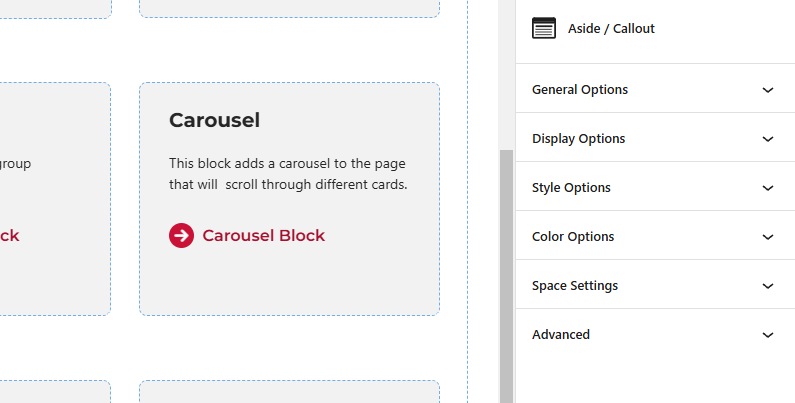
- General – In this panel users will be able to enter the callout heading for the block. This can also be done within the editor.
- Display Options – This panel allows users to add a border to the block, align the element, and set the max-width of the block.
- Style Options – Change the style of the block.
- Color Options – Change the background or the border the color of the block.
- Space Settings – Users can add margin or padding to the block. This is usually done to add more spacing around block so they are not too close to other elements.
- Advanced – Allows users to schedule the block, position the block, create an anchor link to the block, and hide the block on a specific breakpoint.
- Block Scheduling (if enabled) – Allows block to be scheduled. This causes the block to be published or unpublished depending on the date selected.