Heading Examples
Heading 2
Heading 3
Heading 4
Heading 5
Heading 6
Heading Styles Examples
The heading block has a style option that allows users to add a decorator to the bottom of each heading.
Heading 2
The Web Design System also allows users to control the font size of each heading. This allows users to keep the right heading structure for the page but allows the styling changes if needed.
This is a h2 heading but with larger font size
This is a h2 heading but with small font size
Adding a Heading Block
Method 1 – Use a forward slash (/) and then type out “Heading”. The heading block should show up.
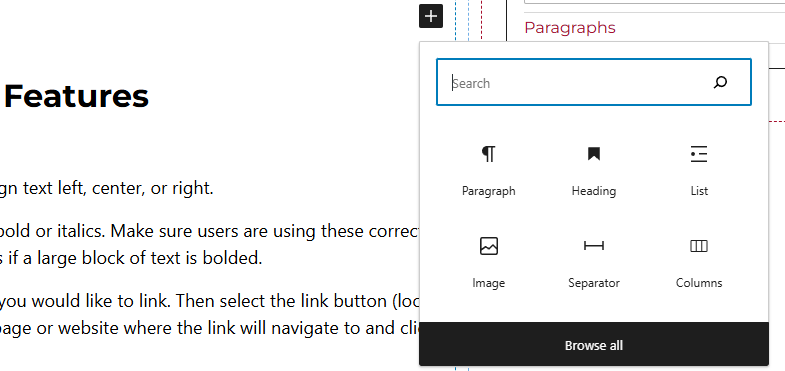
Method 2 – After selecting the editor, the user should see a + icon. Selecting this should show a list of the most common blocks used. If the heading block is not there, use the search feature to find it.
Heading Block Features
Toolbar
- Heading Level – Select the heading level. This is very important when it comes to accessibility. Users need to make sure that they are not skipping heading levels. Learn more about headings and accessibility.
- Aligning Text – Allows user to align heading left, center, or right.
- Bold and Italics – Make the text bold or italics. Make sure users are using these correctly as it can cause accessibility issues if a large block of text is bolded.
- Linking Text – Highlight the text you would like to link. Then select the link button (looks like a link). Enter the URL of the page or website where the link will navigate to and select enter.
Side Panels
After selecting the heading block, the user will see the following options on the right hand panels:
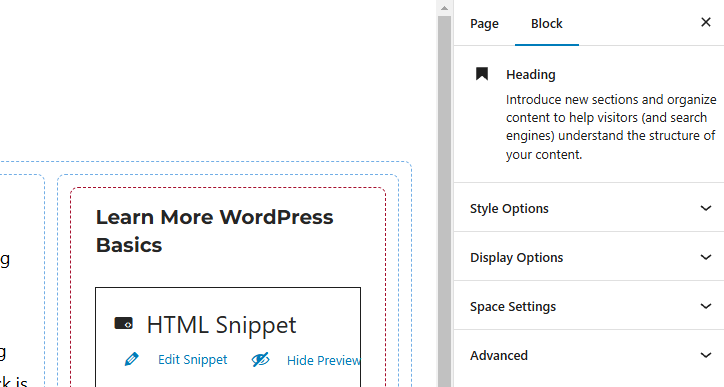
- Style Options – Select between a heading with an underline or without it.
- Display Options – Users can select size of the heading.
- Space Settings – Users can add margin to the heading blocks. This is usually done to add more spacing around text so they are not too close to other elements.
- Advanced – Allows users to add anchor tags to the text, schedule the block, position the block, and hide the block on a specific breakpoint.
- Block Scheduling (if enabled) – Allows block to be scheduled. This causes the block to be published or unpublished depending on the date selected.