The customizer is a section of the website where users can go to and set up various parts. To see the customizers users can either access the WordPress dashboard and select Appearance->Customize, or they can select Customize on the WordPress admin bar.
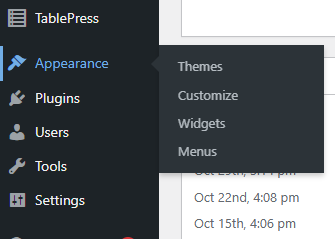
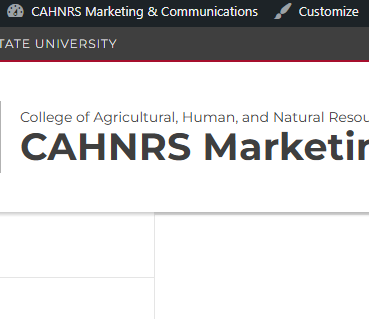
Some of the options users will see are:
- Site Identity
- Menus
- Widgets
- Homepage Settings
- WSU Theme Options
- WSU Template Options
- WSU Social Accounts
- Contact Information
Customizer Options
Site Identity
This panel shows the website title and the tagline.

Menus
Another section of the website where users can customize and/or add menus.
Widgets
Here users can add widgets to their website. You can learn more about widgets here.
Homepage Settings
Panel where users can select what the homepage should be.
WSU Theme Options
Site Header
- Mobile Menu – Capability of turning off or on the mobile menu.
- Dark Mode – Turn the header to the darker version.
- Search/Quicklinks – Turn off or on the search and Quicklinks panel on the top right.
- Search Toggle Options – Allow search on the website.
- Search Context – By default, should the search only search the website or all of WSU.
- Quicklinks CTA Text – Change what the text content shows in the link.
- Quicklinks CTA Link – URL of where the CTA link should navigate to whenever a user selects it. This is usually a WSU foundation URL.
- Subtitle Link – If the subtitle/tag line should be linked, this is where the URL would be.
Audience Navigation
- Dark Mode – If there is an audience navigation, this allows it to use the darker background.
Horizontal Navigation
- Dark Mode – If there is a horizontal navigation, this allows it to use the darker background.
- Menu Depth – Allow sub menu items in the menu.
WSU Template Options
This panel shows different templates options for the website. Here users will be able to edit the following items (some options will now show up on specific templates):
- Sidebar – This options allows a sidebar to show up on the template selected. Here users will be able to add widgets.
- Page Title – Show or hide the page title.
- Breadcrumbs – Toggle on and off the breadcrumbs.
- Publish Date Before Content – Show or hide the date the item was published on the website before the content.
- Byline Before Content – Show or hide the author of the page or post.
- Share Icons Before Content – Show or hide the icons to share the page or post.
- Publish Date After Content – Show or hide the publish date of the page or post after the content.
- Byline After Content – Show the author of the page or post after the content.
- Share Icons After Content – Show or hide the sharing icons after the content.
- Categories – If the post or page has categories assigned, hide or show them.
- Tags – If the post or page has tags assigned, hide or show them.
- Widgets Area Before Content – Add a widget area before the content.
- Widgets Area After Content – Add a widget area after the content.
WSU Social Accounts
In this panel users can add the social media accounts for their website. Accounts include:
- Youtube
Contact Information
Display contact information. This includes:
- Organization
- Address
- City
- State
- Zip
- Phone