Adding or Editing a Menu
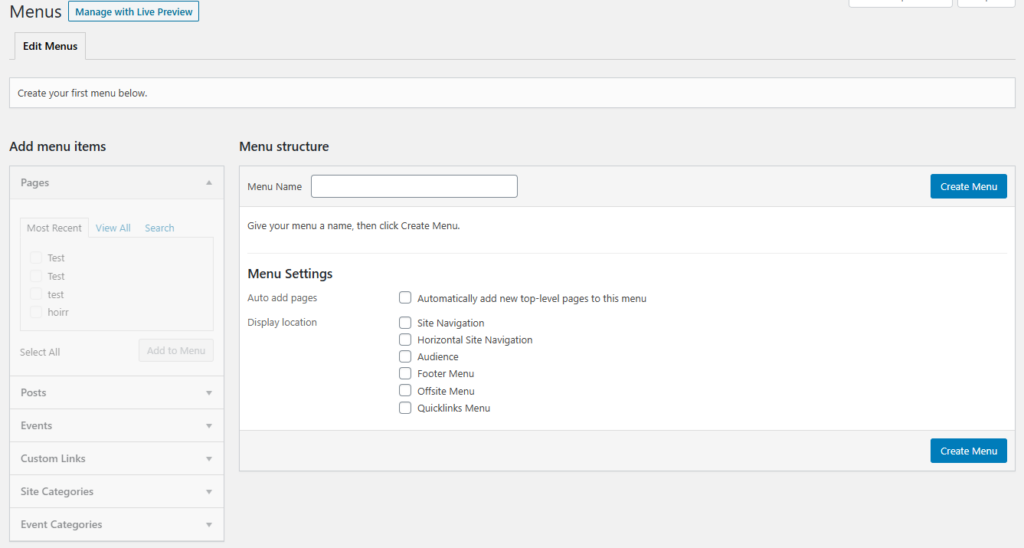
To add a menu to a website, users will need to navigate to Appearance and then select Menus. Once the page loads, users will be able to create a new menu or edit an already existing menu.
Adding a Menu
- Name the menu by entering the name in the “Menu Name” input box.
- Select the “Create Menu” button.
- On the left hand side users will see a section labeled “Add menu items”. Here users can add:
- Pages
- Posts
- Custom Links
- Site Categories
- Other Possible Post Types like Events or News Articles
- Under each tab users will see the most recent or they can see all of the post/pages that exist on the website. If the user can’t find the page or post, there is also a search option.
- Once the menu items are selected, users will need to select the “Add to Menu” button in order to move those items into the menu.
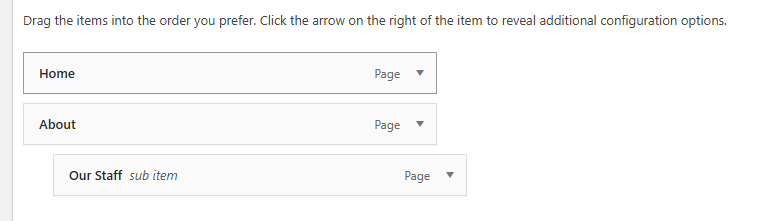
- The items will be moved over to the menu and users will be able to drag and drop the order of the menu items. If there is a menu item that needs to be a sub-menu item, users can drag and drop it as indented item (see below).
Menu Locations
Once the menu items have been set up, users can then select the location of the menu.
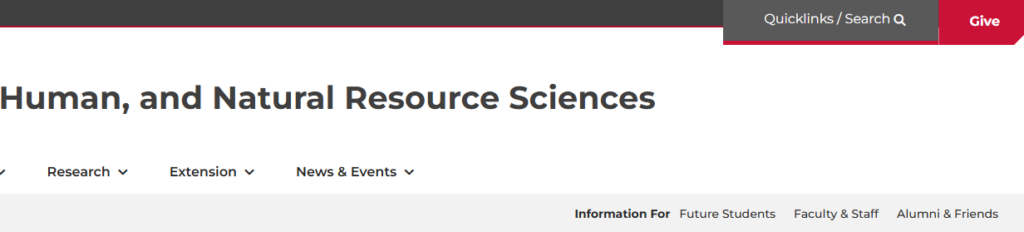
Horizontal Site Navigation
Navigation found at the top of the page

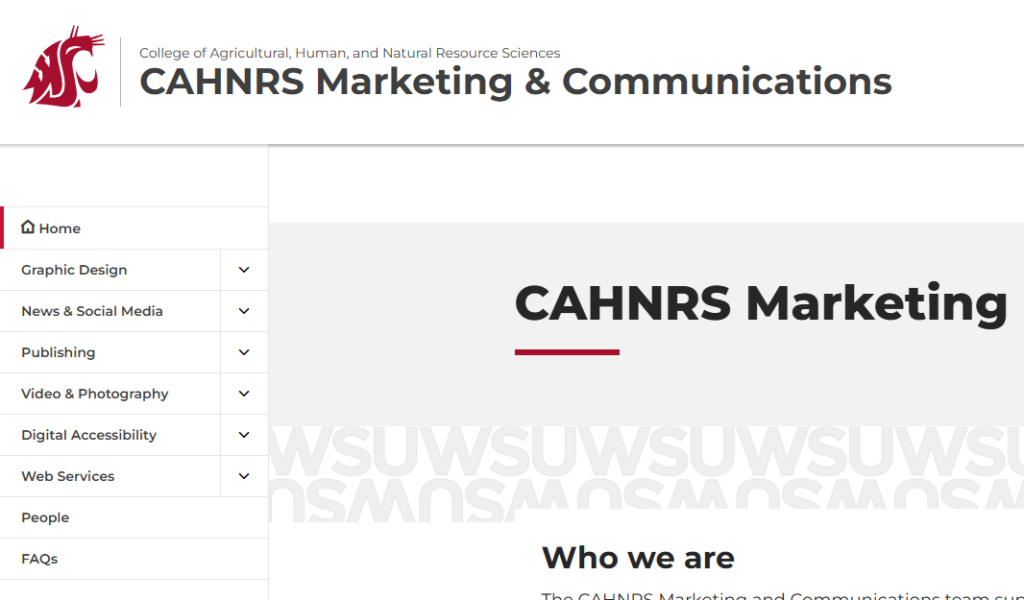
Site Navigation
Navigation found on the left hand side of the website. If the website is an Extension County website, this menu will not be available.
Audience Navigation
Navigation that shows up under the horizontal navigation.
Footer Menu
Navigation menu that is located at the footer of the menu.
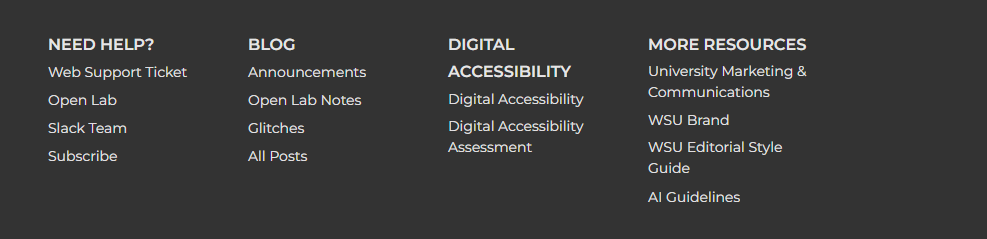
Offsite Menu
Navigation menu also located in the footer. Links here should navigate to other websites.

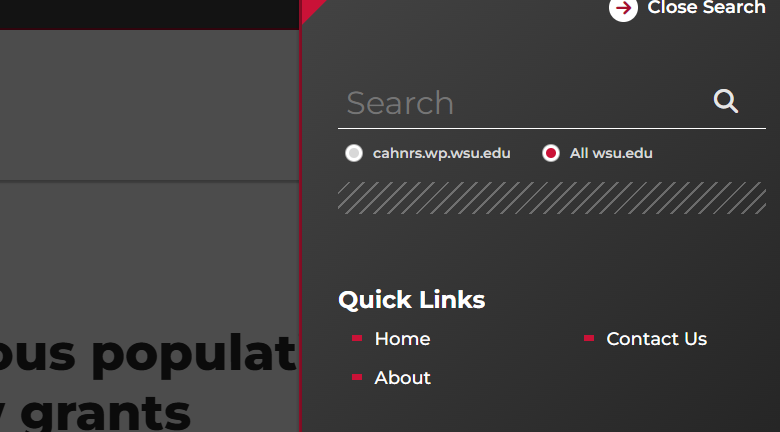
Quicklinks Menu
Navigation menu that is located in the Quicklinks/Search at the top right of the website.
Saving Menu
Once the user is done editing or creating the menu, they will need to create on the “Save Menu” button at the bottom of the page. Not selecting this button will not update an existing menu.
Changing Name of the Menu Link
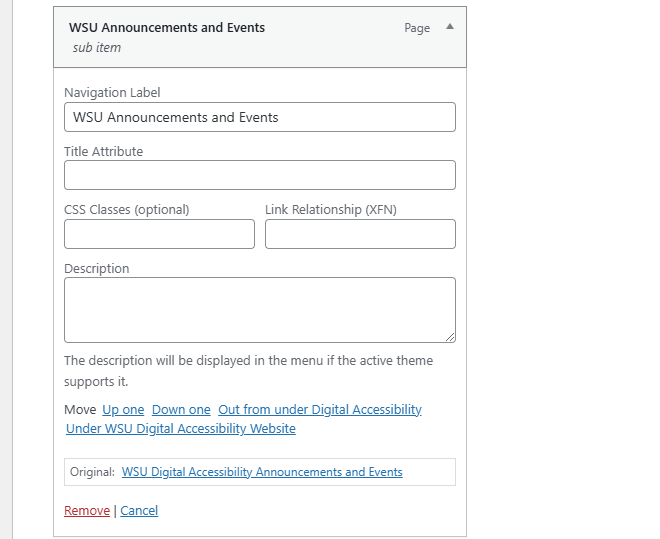
If the website has a page or other menu items that are long, the user has the capability of changing the label of the link. This can be done by selecting the down arrow at the right of the menu item and editing the “Navigation Label”. In the example below, the page name “WSU Digital Accessibility Announcements and Events” is being changed to use “WSU Announcements and Events”.